You can now move a layer directly to any position by typing a number into the new input field in the Layer panel toolbar. No more clicking the up or down arrows dozens of times to move an item from the bottom of the stack to the top!
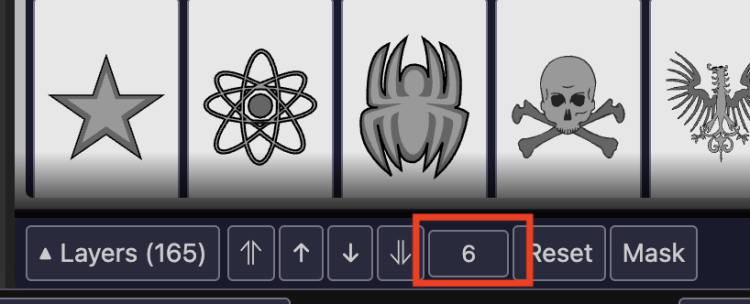
Select an item, and you’ll see its current layer number displayed between the arrow buttons and the Reset button. Just type in the position you want and hit Enter — the item moves there instantly.
As a reminder, you can also drag and drop items in the expanded layer list to reorder them. Click the ▲ toggle to expand the list, then drag any row to a new position. Between drag-and-drop and the new position input, you should be able to get your layers exactly where you want them quickly and easily.
This feature was suggested by long-time All Star community member MadJack — thanks for the great idea! If you have suggestions for improvements, leave a comment or use the contact form.
Happy creating!