The Flash version didn’t allow you to customize the interface in any meaningful way, but the new version will:
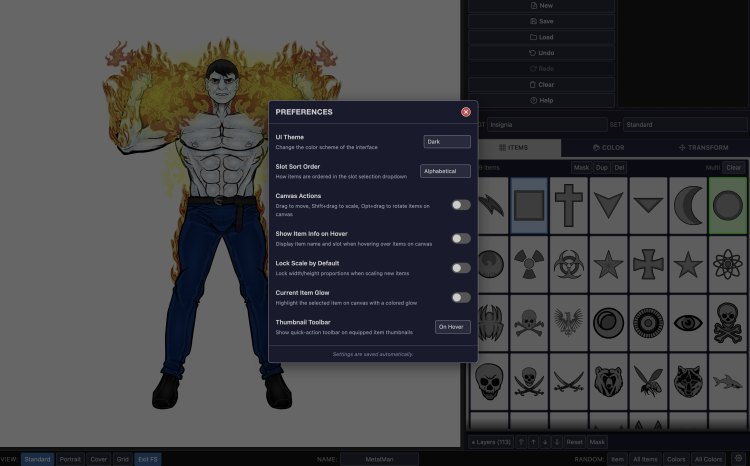
Here’s a list of all the preferences you can set to tailor your HM3 experience how you like:
Click the gear icon (⚙) in the bottom bar to open the Preferences panel. All settings are saved automatically and persist between sessions.
UI Theme: Choose a color scheme for the interface: – Dark — the default dark-background theme – Light — light backgrounds with dark text – HeroMachine 2 — steel blue tones inspired by HeroMachine 2.5 – HM Classic — bronze and olive tones from the original HeroMachine 1
All themes meet WCAG AA contrast standards for accessibility.
Slot Sort Order: Controls how body part slots appear in the dropdown: – Alphabetical — slots listed A–Z (default) – Rendering Order — slots listed back-to-front in the same order they stack on the canvas, so you can work from background to foreground
Canvas Actions: When enabled (default), you can interact directly with items on the canvas: – Drag to move – Shift+drag to scale – Opt+drag to rotate
Turn this off if you prefer using only the Transform tab controls, or to avoid accidentally moving items while browsing.
Show Item Info on Hover: When enabled, hovering over any item on the canvas displays a tooltip showing the item’s name and slot. Helpful for identifying overlapping pieces.
Lock Scale by Default: Controls whether the scale lock (proportional scaling) starts locked or unlocked when working with new items. Default is unlocked.
Current Item Glow: When enabled, the currently selected item on the canvas is highlighted with a colored glow that follows the item’s shape. Helpful for spotting which item is selected when pieces overlap. The glow is automatically hidden during drag operations for performance. Default is off.
Thumbnail Toolbar: Controls when the quick-action toolbar appears on equipped item thumbnails in the item grid: – On Hover — toolbar appears when you hover over an equipped thumbnail (default) – Always On — toolbar is always visible on all equipped thumbnails – Always Off — toolbar is hidden